
CleanScreen
Sharp HiDPI scaling for external displays on macOS.
 Download for MacmacOS 13 or later · Apple Silicon & Intel
All releases · Source code · Free and open source (MIT)
Why CleanScreen
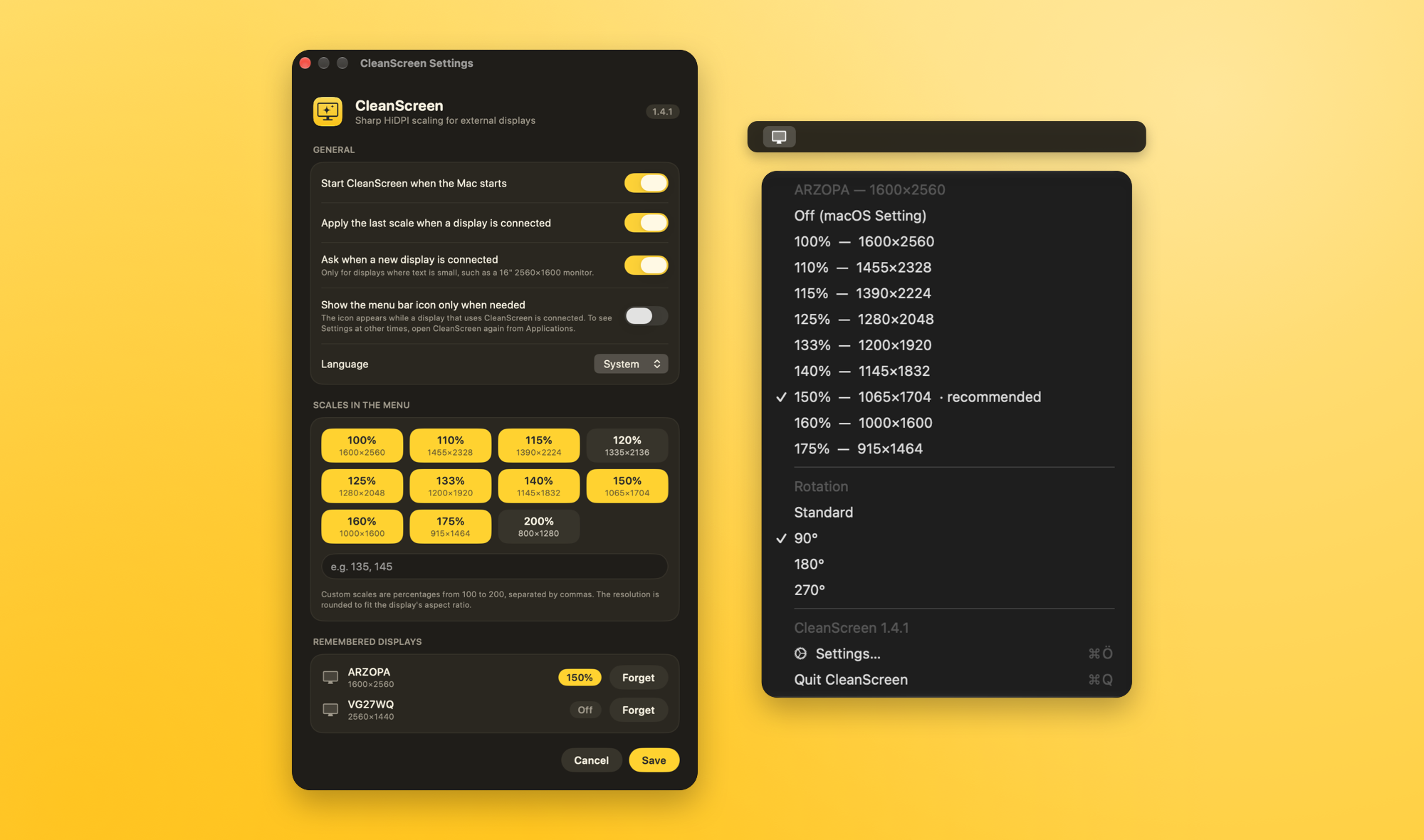
On many external displays macOS offers sharp HiDPI scaling at only a few sizes. In-between sizes like 125% come out soft or pixelated. CleanScreen makes every scale HiDPI. It draws the desktop at twice the size on a virtual display and mirrors your monitor to it.
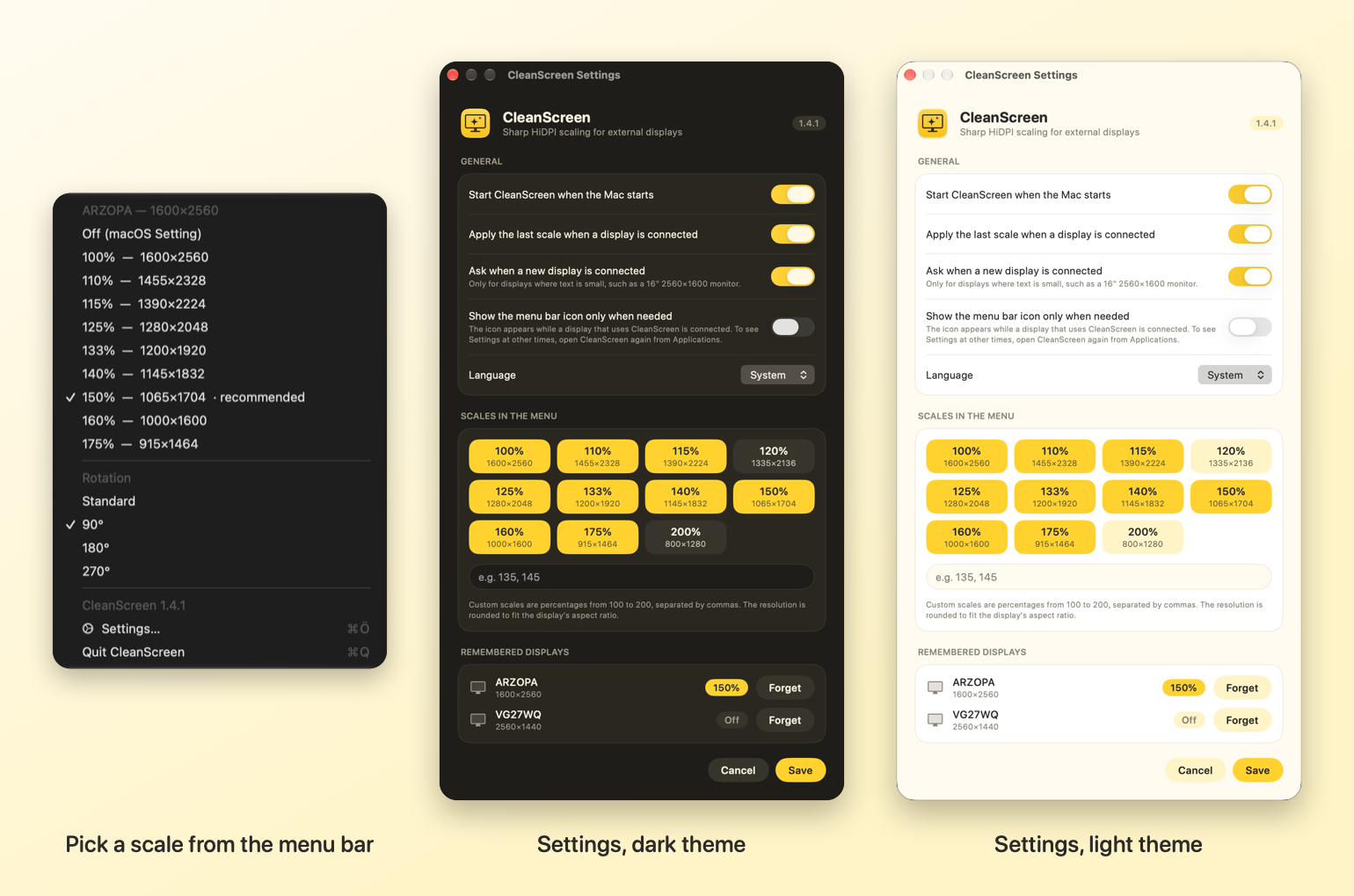
- Any scale, from 100% to 200%. You can add your own.
- Remembers each display. It applies the last scale when you plug a monitor in or the Mac wakes up.
- Offers to help with new displays. Plug in a display with small text and CleanScreen suggests a scale.
- Rotation to 90°, 180° or 270° from the menu, even while scaled.
- Starts with your Mac if you want it to, and can stay hidden until a display that uses it is connected. Supports several external displays.
- English and Turkish, light and dark.
- Easy to undo. Choose Off (macOS Setting) or quit the app. Nothing changes permanently.
Install
- Open
CleanScreen.dmgand drag CleanScreen to Applications. - CleanScreen isn't notarized, so macOS blocks it the first time. Open System Settings › Privacy & Security and click Open Anyway.
- Click the display icon in the menu bar and choose a scale.
Türkçe
CleanScreen, harici monitörlerde her ölçeği keskin HiDPI yapan ücretsiz bir menü çubuğu uygulamasıdır. %125 gibi ara ölçeklerde görülen yumuşama ve pikselleşmeyi giderir. Monitörü takınca son ölçeği hatırlar, yeni monitörlere ölçek önerir, monitörü döndürebilir ve istersen Mac açılınca başlar. Türkçe ve İngilizce.
Mac için indir. İlk açılışta Sistem Ayarları › Gizlilik ve Güvenlik'ten Yine de Aç'a tıkla.
The virtual display runs at 60 Hz, so a 120 Hz or 165 Hz monitor drops to 60 Hz while scaled; CleanScreen warns you about these displays. CleanScreen uses an undocumented macOS API, so a macOS update could break it. If anything goes wrong, quit the app or unplug the monitor and plug it back in.